
01 / Getting started
Your first floating window.
Keep a checklist, a set of instructions, or a local report beside the work. Start with a file you already have.
Automatic copy is unavailable. The full chapter Markdown is selected below; use your keyboard to copy it.
Install Porthole.
Search for Porthole in VS Code’s Extensions view, or run:
code --install-extension jlumbroso.portholeYou can also visit the VS Code Marketplace, find the extension on Open VSX, or install the .vsix from a GitHub release.
Open a local file.
In VS Code, open an HTML or Markdown file: .html, .htm, .md, or .markdown. A checklist, a set of steps, or a local report makes a useful first page.
Pop it out.
With the source file open, press Ctrl+Alt+M (⌃⌥M on macOS). You can also right-click the file in the Explorer and choose Pop Out to Floating Window. The editor’s title bar and the file’s tab menu offer the same action.
By default, the rendered page opens in a compact, pinned window at 420 × 640 pixels. Tabs, breadcrumbs, and the status bar disappear. The window’s title bar remains; HTML also keeps the integrated browser’s toolbar.
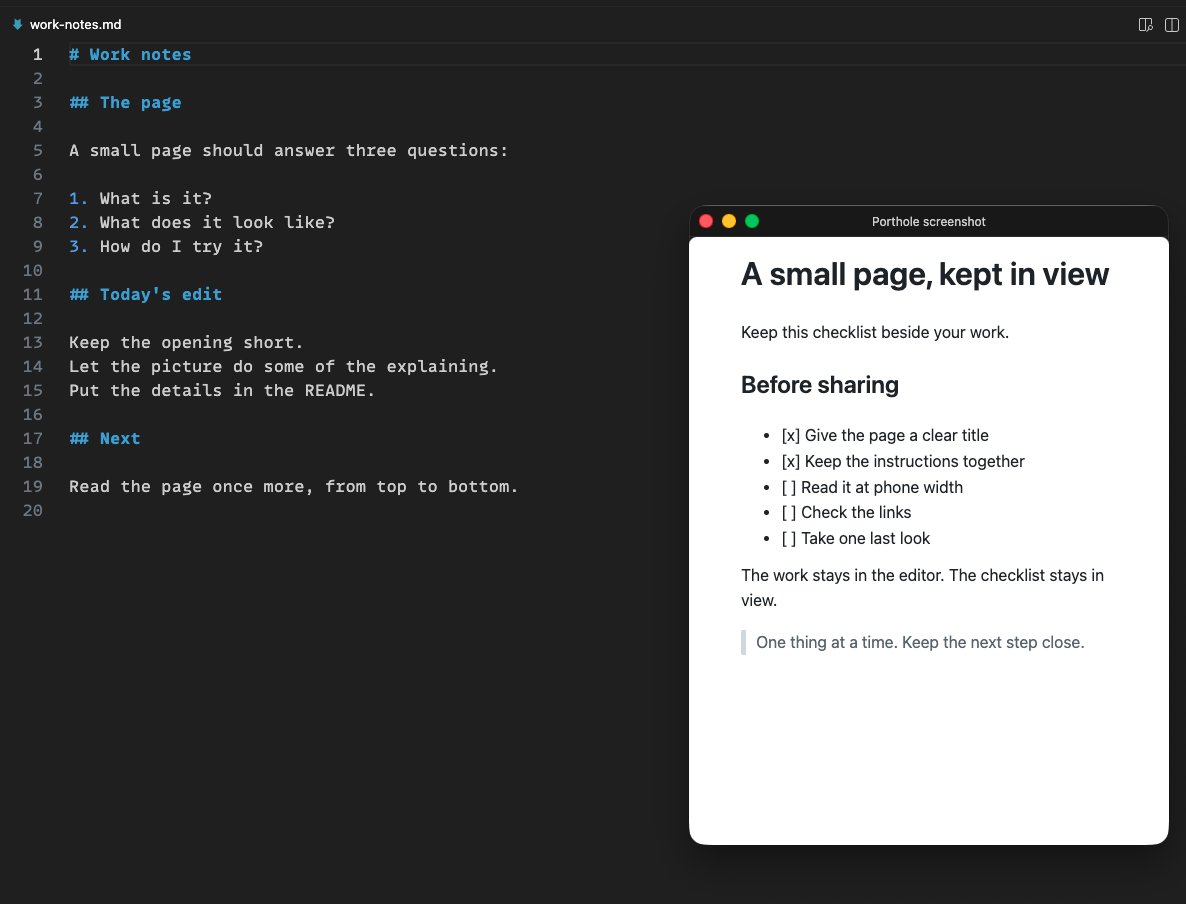
Keep working.
Switch to the editor or another application. With always-on-top enabled, the page stays in view. Save changes to an HTML file to update its rendered page; Markdown previews update as you edit.
A Markdown checkbox is a preview. Task-list boxes are shown, but you cannot click them to change the file. For an interactive checklist, use an HTML page.
At first pop-out in a session, Porthole may ask whether VS Code should keep floating windows to one tab. Keep Compact configures that behavior, Not Now leaves it alone, and Don’t Ask Again stops future offers. You can review the setting later.
Put it back.
Focus the floating window and press the same shortcut, or run Porthole: Dock Back into Main Window.
While it floats, use Porthole: Cycle Window Size or Porthole: Toggle Always on Top to adjust it. Window controls explains the presets and opening behavior.