# Porthole manual
# Your first floating window.
Keep a checklist, a set of instructions, or a local report beside the work. Start with a file you already have.
## Install Porthole.
Search for **Porthole** in VS Code’s Extensions view, or run:
```
code --install-extension jlumbroso.porthole
```
You can also visit the [VS Code Marketplace](https://marketplace.visualstudio.com/items?itemName=jlumbroso.porthole), find the extension on [Open VSX](https://open-vsx.org/extension/jlumbroso/porthole), or install the `.vsix` from a [GitHub release](https://github.com/jlumbroso/porthole/releases).
## Open a local file.
In VS Code, open an HTML or Markdown file: `.html`, `.htm`, `.md`, or `.markdown`. A checklist, a set of steps, or a local report makes a useful first page.
## Pop it out.
With the source file open, press **Ctrl+Alt+M** (**⌃⌥M** on macOS). You can also right-click the file in the Explorer and choose **Pop Out to Floating Window**. The editor’s title bar and the file’s tab menu offer the same action.
By default, the rendered page opens in a compact, pinned window at **420 × 640 pixels**. Tabs, breadcrumbs, and the status bar disappear. The window’s title bar remains; HTML also keeps the integrated browser’s toolbar.
[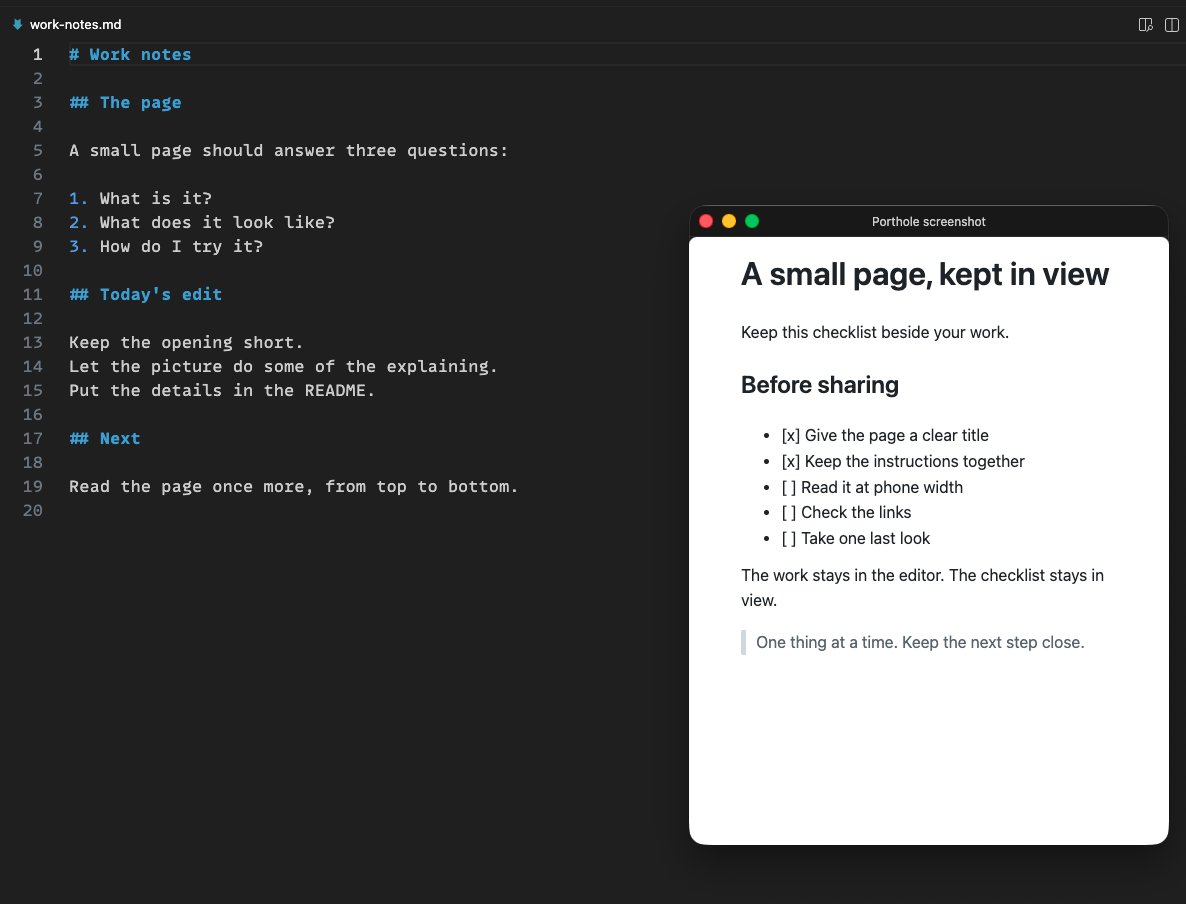](https://jlumbroso.github.io/porthole-docs/assets/porthole-markdown-light.png)
FIG. 01 — The checklist stays beside the work notes. A real Porthole capture.
## Keep working.
Switch to the editor or another application. With always-on-top enabled, the page stays in view. Save changes to an HTML file to update its rendered page; Markdown previews update as you edit.
> **A Markdown checkbox is a preview.** Task-list boxes are shown, but you cannot click them to change the file. For an interactive checklist, use an HTML page.
At first pop-out in a session, Porthole may ask whether VS Code should keep floating windows to one tab. **Keep Compact** configures that behavior, **Not Now** leaves it alone, and **Don’t Ask Again** stops future offers. You can review the setting later.
## Put it back.
Focus the floating window and press the same shortcut, or run **Porthole: Dock Back into Main Window**.
While it floats, use **Porthole: Cycle Window Size** or **Porthole: Toggle Always on Top** to adjust it. [Window controls](https://jlumbroso.github.io/porthole-docs/window-controls.html) explains the presets and opening behavior.
## Chapter notes
**What you need**
VS Code desktop 1.134.0 or later, Porthole, and a local HTML or Markdown file. The latest VS Code release is officially supported.
**Tested on macOS**
Porthole has been run on macOS. Windows and Linux have not yet been tested.
**A first-use question**
Porthole may ask whether VS Code should keep floating windows to one tab. Keep Compact, Not Now, and Don’t Ask Again let you choose.
For Porthole 0.4.0. Updated 19 October 2026. [Online chapter](https://jlumbroso.github.io/porthole-docs/index.html). [Source reference](https://github.com/jlumbroso/porthole/blob/v0.4.0/README.md).
---
# Choose the page for the job.
Use Markdown for notes and reference material. Use HTML when the page needs buttons, fields, or checkboxes you can click.
## A reference or an interactive page.
Porthole renders neither format itself. It brings VS Code’s existing renderer into a floating window.
Two formats, two kinds of page
| HTML | Markdown |
| --- | --- |
| Rendered by VS Code’s integrated browser. | Rendered by VS Code’s Markdown preview. |
| Use buttons, text fields, and interactive checklists. | Use readable notes, instructions, and reference material. |
| The page’s scripts provide its behavior. | The preview is read-only. Task-list boxes cannot edit the file. |
| Save the file to update the rendered page. | The preview updates as you edit the file. |
## Write an HTML page for a small window.
Give it a useful title, such as:
```
[my-project] Release checklist
```
VS Code shows the page’s title in the floating window. A project name helps distinguish several pages at a glance.
Keep the page readable at about 420–640 pixels wide. Let paragraphs wrap, keep buttons large enough to use, and make long commands scroll within their own block.
A page can use its own `localStorage` to remember checklist state when the same file is reopened. The page supplies that behavior; Porthole does not add it.
## Choose Markdown colors.
`porthole.markdown.colorScheme` accepts three values:
- `auto` follows VS Code’s theme. This is the default.
- `light` gives the Markdown page light colors.
- `dark` gives it dark colors.
The colors follow the file. While it is popped out, every preview of that file uses the chosen scheme, including a preview docked in the main window. Previews of other files keep following VS Code’s theme. Code blocks retain VS Code’s syntax colors.
> **Need a checklist you can tick?** Markdown task-list boxes are read-only in the preview. Use HTML when the person following the steps needs to click, type, or press a button.
## Start from the local file.
Porthole opens local HTML and Markdown files. It does not yet pop out a page already open in a browser tab, a web address, or a localhost URL. Remote and virtual workspaces are outside the supported scope.
To bring a page forward again, pop out the same file. Porthole finds its existing floating window instead of opening another.
## Chapter notes
**Local files**
Supported extensions are .html, .htm, .md, and .markdown. Web addresses, localhost URLs, remote workspaces, and virtual workspaces are outside the supported scope.
**Markdown verification**
Markdown was tested on VS Code 1.141.0. The necessary preview editor appears in the source for 1.134.0, but Markdown was not tested on that version.
**A small canvas**
An HTML page about 420–640 pixels wide is a useful starting point. Keep instructions readable without scrolling sideways.
For Porthole 0.4.0. Updated 19 October 2026. [Online chapter](https://jlumbroso.github.io/porthole-docs/html-and-markdown.html). [Source reference](https://github.com/jlumbroso/porthole/blob/v0.4.0/README.md).
---
# Shape the window.
Choose a size, keep the page above your other windows, and return it to the main VS Code window.
## Focus the window first.
Click the floating window, then choose the action from the Command Palette.
Commands for the focused floating window
| To do this | Use |
| --- | --- |
| Step through size presets | **Porthole: Cycle Window Size** |
| Unpin or re-pin | **Porthole: Toggle Always on Top** |
| Return to the main window | **Porthole: Dock Back into Main Window**, or **Ctrl+Alt+M** (**⌃⌥M** on macOS) |
## Pick your sizes.
`porthole.sizes` defines the cycle. A new window opens at the first preset. These are the defaults:
```
"porthole.sizes": [
{ "name": "S", "width": 420, "height": 640 },
{ "name": "M", "width": 480, "height": 720 },
{ "name": "L", "width": 640, "height": 900 }
]
```
Dimensions are pixels. VS Code will not make a window smaller than **400 × 270**. Cycling size reopens the page at the next preset.
If a page was opened through an outside link with an explicit size, the next cycle starts at your first preset.
## Choose where it opens.
`porthole.position` defaults to `null`, which lets VS Code center the window on the current window. To choose screen coordinates:
```
"porthole.position": { "x": 40, "y": 80 }
```
`porthole.compact` and `porthole.alwaysOnTop` both default to `true`. They choose how a window opens. The pin command changes the focused window.
## Keep one tab in view.
Choosing **Keep Compact** at the first-use prompt lets Porthole configure VS Code’s `workbench.editor.autoLockGroups` setting. It writes only the integrated-browser and Markdown-preview entries, and tells you when it changes a setting.
Some extensions open editors by column number, which can still place a second tab in a floating window. `porthole.keepToOneTab` decides what happens:
- `move` — move the editor to the main window, keeping its cursor. The default.
- `ask` — ask each time.
- `off` — leave it in the floating window.
An editor with unsaved changes is always left where it is.
## If the preset does not apply.
Exact sizing relies on an internal VS Code command. If that call fails or Porthole detects no new window, it tries opening the page through separate commands, without applying your requested size. Check the **Porthole** output channel if no window appears.
Set `porthole.useInternalCommand` to `false` to skip the internal sizing command and use this fallback for new windows. Size presets then do not apply. See [Settings and troubleshooting](https://jlumbroso.github.io/porthole-docs/settings-and-troubleshooting.html) for the available controls and known limits.
## Chapter notes
**Focus first**
Click the floating window before using its size, pin, or dock command. With several windows open, make the intended window active.
**Minimum size**
VS Code will not make the window smaller than 400 × 270 pixels. The default presets are 420 × 640, 480 × 720, and 640 × 900.
**Exact sizes**
Preset sizing relies on an internal VS Code command. If it fails, Porthole tries another way to open the window, without applying the requested size.
For Porthole 0.4.0. Updated 19 October 2026. [Online chapter](https://jlumbroso.github.io/porthole-docs/window-controls.html). [Source reference](https://github.com/jlumbroso/porthole/blob/v0.4.0/package.json).
---
# Open a page from a terminal.
Write the page to disk. Send its local path to VS Code with a vscode:// link.
## Open a local file.
Keep VS Code running with your project open. On macOS, replace the example path with an existing local HTML file, then run:
```
open 'vscode://jlumbroso.porthole/v1/open?file=/absolute/path/tasks.html&width=420&height=640'
```
Keep the quotes: the shell must leave the `&` characters alone. The page must be a local HTML or Markdown file. Web addresses and localhost URLs are not supported.
## What the link means.
Parameters for `/v1/open`
| Parameter | Meaning |
| --- | --- |
| `file` | Required. An absolute local path, or a path relative to a workspace folder in the receiving VS Code window. |
| `width`, `height` | Both or neither; positive whole pixels. Without them, the window uses the first size preset. VS Code raises dimensions below 400 × 270. |
| `repo` | A workspace folder’s name, used to disambiguate a relative path. It is not a repository URL. |
The VS Code window used most recently receives the link. Relative paths are looked up only in its workspace folders. Use an absolute path if the person may be working in another project. An ambiguous relative path is refused.
## Encode the path once.
Preserve the separating slashes. In JavaScript:
```
path.split('/').map(encodeURIComponent).join('/')
```
Spaces become `%20`, `+` becomes `%2B`, and `#` becomes `%23`. Do not use `encodeURI`, which leaves some query-significant characters alone.
One current limit: a filename containing `&` followed by letters and `=` cannot be sent through this interface, even encoded. Rename that file before using the link.
## What the person sees.
Disabled outside links or page-opening actions are refused. When both are enabled, files in permitted locations open without another Porthole prompt. For other files, Porthole offers **Open Once**, **Allow This Folder**, and **Cancel**. VS Code also has its own first-use permission prompt.
> **Opening a window moves keyboard focus.** On macOS, a new floating window takes focus. Avoid opening a page while the person is typing in another application: their keystrokes can go into the page.
Do not change these permission settings without the person’s approval. See [outside-link settings](https://jlumbroso.github.io/porthole-docs/settings-and-troubleshooting.html#settings-and-troubleshooting-outside-links) for the individual controls.
## Update the page, then check the result.
Save changes to HTML files; Markdown previews update as you edit. Sending the same link again without dimensions brings the existing window forward, where the person put it. Sending it with dimensions requests reopening at that size.
Sending a link does not prove that a page became visible. Read the **Porthole** output channel for receipt, opening, or refusal messages. When reporting the result, distinguish those messages from observing the rendered window.
## Install the Porthole skill.
Run **Porthole: Install the Skill for Models in This Project**, or send:
```
open 'vscode://jlumbroso.porthole/v1/install-skill'
```
Porthole writes `.claude/skills/porthole/SKILL.md` in a workspace folder. If the receiving window has several folders, add `?repo=`. The first installation link asks permission for that VS Code workspace; approval also covers its other folders. Replacing an edited copy asks again.
Claude Code discovers the installed skill. Other agents can read the same file explicitly.
Outside links currently open pages and install the skill. Listing, closing, docking, pinning, and independently resizing windows through this interface are not implemented.
## Chapter notes
**Experimental**
Outside links have been run on macOS in VS Code. Their shape may change; check the changelog when upgrading.
**Version requirements**
Opening from an outside link requires Porthole 0.3.0 or later. Installing the model skill through the extension requires 0.4.0 or later.
**One receiving window**
The VS Code window used most recently receives the link. A repo parameter selects a workspace folder within that window; it does not route the link to another window.
For Porthole 0.4.0. Updated 19 October 2026. [Online chapter](https://jlumbroso.github.io/porthole-docs/terminal-and-agents.html). [Source reference](https://github.com/jlumbroso/porthole/blob/v0.4.0/.claude/skills/porthole/SKILL.md).
---
# Settings and troubleshooting.
Change window settings and outside-link permissions. Check the Porthole output channel when a command or link does not work.
## Window settings.
Open VS Code Settings and search for `porthole`. Every setting in this table begins with `porthole.`
Window and preview defaults
| Setting | Default | Purpose |
| --- | --- | --- |
| `sizes` | 420×640, 480×720, 640×900 | Opening size and cycle sequence. |
| `position` | `null` | Opening coordinates; otherwise center on the current window. |
| `compact` | `true` | Hide tabs, breadcrumbs, and the status bar. |
| `alwaysOnTop` | `true` | Open pinned above other windows. |
| `markdown.colorScheme` | `auto` | Follow VS Code’s theme, or choose `light` or `dark`. |
| `keepToOneTab` | `move` | Handle editors opened by other extensions; also accepts `ask` or `off`. |
| `askToKeepCompact` | `true` | Offer VS Code’s one-tab configuration at first pop-out in a session. |
| `useInternalCommand` | `true` | Use the internal command for exact preset sizing. |
## Outside-link permissions.
These names begin with `porthole.outsideLinks.` They control links sent from a terminal, a script, or an agent.
Outside-link defaults
| Setting | Default | Effect |
| --- | --- | --- |
| `enabled` | `true` | Accept outside links at all. |
| `actions.open` | `true` | Allow links to open pages. |
| `actions.installSkill` | `true` | Allow skill-installation links, with permission remembered for the receiving VS Code workspace. |
| `allowWorkspaceFolders` | `true` | Allow files in the receiving window’s workspace folders without asking. |
| `allowedFolders` | `[]` | Additional folders, by absolute path, whose files may open without asking. |
| `allowLocalFiles` | `false` | Allow other local files without asking. |
Folder checks resolve `..` and symbolic links before comparing paths. Comparisons ignore letter case on macOS and Windows.
Turn `porthole.outsideLinks.enabled` off to disable the whole interface. The action settings let you control page opening and skill installation separately.
## Review what changed.
**Porthole: Review and Reset Settings…** lists user settings set by or for Porthole. Select the entries you want to remove. Porthole also announces each change it makes to a setting, with a button to open it.
## The size is wrong, or cycling does nothing.
Exact sizing relies on `_workbench.openWith`, an internal VS Code command rather than a documented API. VS Code can change or remove it without notice.
If the call fails or Porthole detects no new window, it tries opening the page through separate commands. This fallback does not apply your requested size. Check the **Porthole** output channel if no window appears.
Set `porthole.useInternalCommand` to `false` to skip `_workbench.openWith` and use this fallback for new windows. Size presets then do not apply.
## An outside link does nothing.
1. Keep VS Code running and check that Porthole is installed. Outside links require 0.3.0 or later; skill installation requires 0.4.0.
2. Check that the local file exists and that its extension is supported.
3. Check the receiving VS Code window. A relative path is resolved only inside that window’s workspace folders.
4. Read the **Porthole** output channel. Refusals explain disabled settings, missing files, and ambiguous relative paths.
If a permission question is waiting, answer it before sending the link again. [Terminal and agents](https://jlumbroso.github.io/porthole-docs/terminal-and-agents.html) covers parameters, encoding, and repeat opens.
## A Markdown checkbox will not tick.
This is VS Code’s read-only Markdown preview. Use an HTML checklist when the page needs to respond to clicks or other input.
## Paste or text shortcuts do not work.
On macOS, **Cmd+V** does not paste into a page while the floating window has focus. Use **right-click → Paste**.
**Ctrl+A** and **Ctrl+E** also do not move to the start and end of a line in integrated-browser text fields. These limits were traced to VS Code.
## Report a problem.
Include your VS Code version and the **Porthole** output in a [bug report](https://github.com/jlumbroso/porthole/issues/new/choose). If you use an older VS Code release, first try the latest version.
Porthole has been run on macOS, with VS Code 1.134.0 and 1.141.0. Windows and Linux remain untested. The [version-floor record](https://github.com/jlumbroso/porthole/blob/v0.4.0/docs/release/VERSION-FLOOR.md) distinguishes source inspection from hands-on checks.
## Chapter notes
**Find the settings**
Open VS Code Settings and search for porthole. The tables show the defaults shipped in Porthole 0.4.0.
**Read Porthole’s logs**
Open VS Code’s Output panel and select Porthole. Refused links and internal-command fallbacks are reported there.
**When reporting a problem**
Include your VS Code version and the Porthole output. If you use an older VS Code release, first try the latest version.
For Porthole 0.4.0. Updated 19 October 2026. [Online chapter](https://jlumbroso.github.io/porthole-docs/settings-and-troubleshooting.html). [Source reference](https://github.com/jlumbroso/porthole/blob/v0.4.0/package.json).